Why Your Default Settings Aren't Enough
Smartphones ship with reasonable baseline security, but "reasonable" isn't the same as "thorough." Manufacturers balance convenience against protection, which means many of the most effective settings arrive turned off, buried in menus, or explained in language that doesn't make their real purpose obvious.
Understanding what each security feature actually does - and what specific threat it guards against - is the difference between feeling secure and being secure. This walkthrough covers the features that matter most, in plain terms.
If you're also curious about what's happening inside the device itself, our plain-English hardware tour explains the components that make these security features physically possible.
Screen Locks and Biometrics: Layered, Not Interchangeable
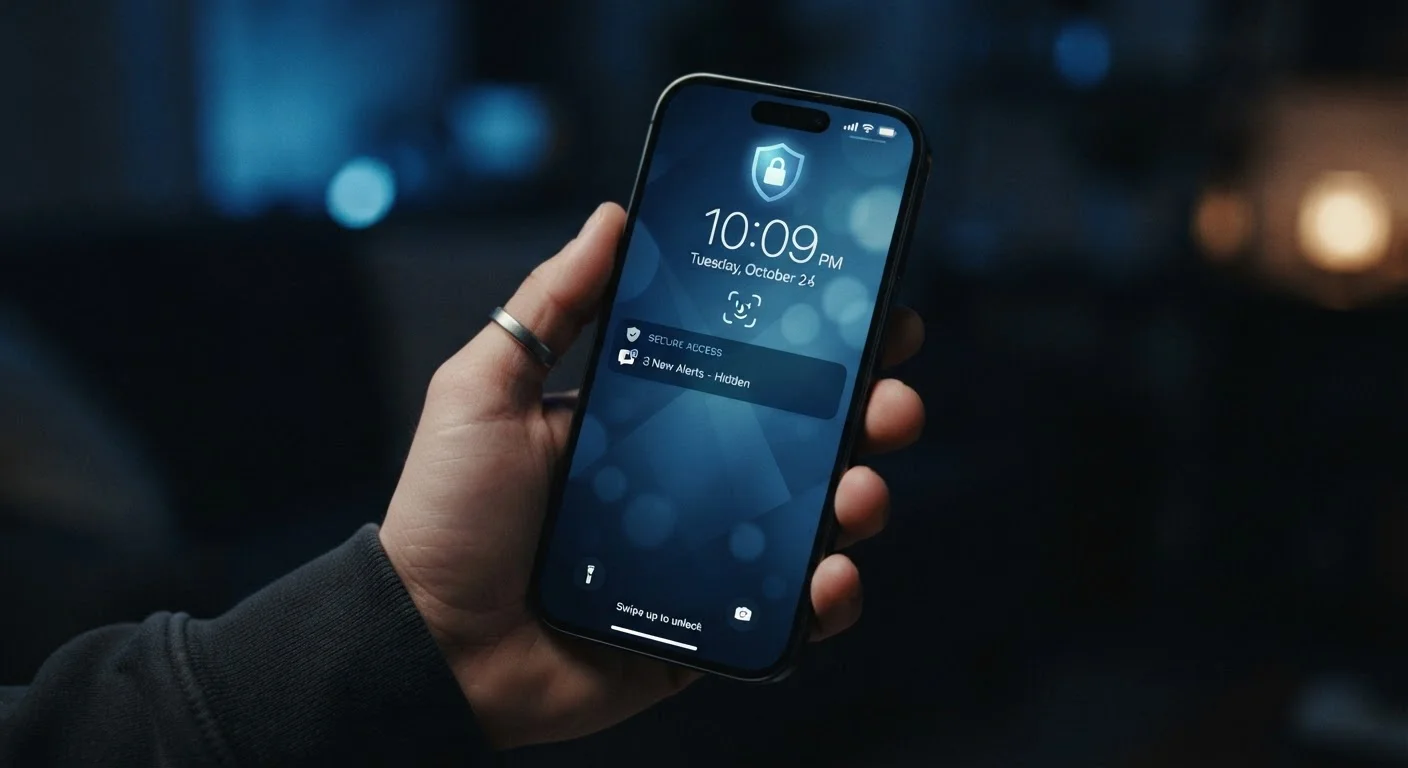
Face unlock and fingerprint sensors feel like the modern answer to screen security, and they're fast and frictionless - which is exactly why they're not your whole answer. Biometrics are a convenience layer sitting on top of your real lock: your PIN, password, or passphrase.
Here's why that distinction matters: biometrics can fail in predictable ways. Fingerprint sensors struggle with wet or dirty fingers. Face unlock can be defeated during sleep on some devices. More importantly, in many legal jurisdictions, law enforcement can compel you to provide a biometric but not a memorized passcode. A strong six-digit PIN or alphanumeric passphrase is your bedrock protection - biometrics just reduce how often you have to type it.
What to do: Set the longest PIN you'll reliably remember, or use a short passphrase. Enable biometrics for daily convenience, but treat them as the shortcut, not the lock itself.
Use a six-digit or longer PIN rather than a four-digit code as your fallback lock
A four-digit PIN has only 10,000 possible combinations; six digits raises that to one million. This makes brute-force guessing - trying every combination - dramatically less practical, especially on devices that introduce lockout delays after failed attempts.
Audit app permissions every few months and revoke anything unnecessary
Apps accumulate permissions over time, and your usage of an app often changes after installation. An app you downloaded for a one-time task may still hold microphone or location access it no longer needs - and that access represents ongoing exposure.
Enable automatic OS and app updates so security patches apply without delay
The window between a vulnerability being patched and it being exploited by attackers can be surprisingly short. Manual update habits introduce gaps that automated updates eliminate. Most security patches are small downloads that install overnight on Wi-Fi.
Protect your primary phone account (Apple ID or Google Account) with an authenticator app for 2FA
Your phone's linked account controls backups, payment methods, and remote device management. It's the highest-value target on your device. Authenticator-based 2FA removes the SMS interception risk while keeping the second-factor protection.
Turn off Wi-Fi and Bluetooth when not actively using them, especially in public spaces
Both radios broadcast your device's presence to nearby devices, creating a surface area for attacks even when you're not actively connected to anything. The habit costs nothing and eliminates a category of passive risk.
App Permissions: The Access You Probably Forgot You Granted
Every app you install can request access to your camera, microphone, location, contacts, and more. The problem is that most people grant permissions once during setup and never revisit them - even after an app's purpose in their life has changed or the app hasn't been used in months.
Both Android and iOS now allow granular permission controls, meaning you can grant location access only while using an app, rather than always. You can give a photo-editing app access to specific images rather than your entire library. These distinctions aren't just privacy-minded - they directly limit what data can be collected or exposed if an app is compromised.
Navigate to your phone's Settings → Privacy (iOS) or Settings → Apps (Android) and review which apps have access to your microphone, camera, and precise location. You may find apps that have no obvious reason to hold those permissions still holding them.
Software Updates: The Security Step People Keep Postponing
Operating system updates routinely include security patches - fixes for specific vulnerabilities that researchers or attackers have discovered. When a patch is released, the vulnerability it addresses becomes public knowledge, which means unpatched devices become easier targets, not harder ones.
Enabling automatic updates removes the friction that causes most people to delay. For apps, automatic updates from your device's app store apply the same logic: outdated apps are a common entry point for malicious activity.
40%
Cyberattacks targeting unpatched vulnerabilities
Security researchers consistently find that a large proportion of successful breaches exploit known vulnerabilities for which patches were already available, according to industry security reports.
99.9%
Account compromise reduction with MFA
Microsoft's security research has indicated that multi-factor authentication blocks the vast majority of automated account-compromise attempts.
One exception worth knowing: major version upgrades (moving from one full OS version to the next) sometimes change settings or introduce new features worth reviewing manually. Security patches within your current version, however, are almost always worth applying immediately.
Two-Factor Authentication and Account Security
Two-factor authentication (2FA) means that logging into an account requires something you know (your password) plus something you have (a code sent to your phone or generated by an authenticator app). Even if someone obtains your password through a data breach, they can't access your account without that second factor.
SMS-based 2FA - where a code is texted to you - is significantly better than no 2FA, but it carries a known weakness: SIM-swapping attacks, where a bad actor convinces your carrier to transfer your number to their device. Authenticator apps (which generate time-limited codes locally on your device) sidestep this risk entirely and are the stronger choice for accounts you care most about: email, banking, and your Apple ID or Google account.
Your phone's own account - the Apple ID or Google account tied to your device - is the most critical to protect. Compromising it gives an attacker access to your backups, payment methods, and the ability to remotely locate or wipe your device.
Wi-Fi, Bluetooth, and What You're Broadcasting
Public Wi-Fi networks - in coffee shops, airports, hotels - are convenient but inherently less trustworthy than your home network. On an unsecured or poorly secured network, it's technically possible for other users on the same network to intercept unencrypted data. Modern encrypted websites (look for HTTPS in the address bar) reduce this risk substantially, but not every connection you make is HTTPS-protected.
Bluetooth carries its own considerations. Your phone continuously broadcasts its availability to pair with nearby devices. Keeping Bluetooth off when not actively in use is a minor habit that reduces your exposure to Bluetooth-based attacks, which - while not common - do exist.
For travelers or frequent public-Wi-Fi users, a reputable VPN (Virtual Private Network) encrypts your traffic before it leaves your device, making it much harder to intercept. If you're planning to pass your device on or sell it, see our guide on what to do before handing down or selling your phone - the same network accounts and settings discussed here need to be properly cleared.