
Why Smart Home Devices Lose the Ability to Communicate
Smart home devices seem like they should all work together - after all, they're designed to live in the same house. But underneath the sleek apps and voice commands, these devices rely on a patchwork of incompatible wireless protocols, each with its own rules, frequencies, and handshakes. When something breaks, it's rarely the device itself that's at fault. More often, it's a hidden conflict between the communication layers your devices depend on.
Understanding these layers doesn't require an engineering degree. Think of wireless protocols the way you think of spoken languages: a device that speaks Zigbee and a device that speaks Z-Wave simply cannot understand each other without a translator (a hub). Wi-Fi and Bluetooth operate on their own frequencies and connection rules. When you mix devices from different ecosystems without accounting for this, dropouts and dead automations are almost guaranteed.
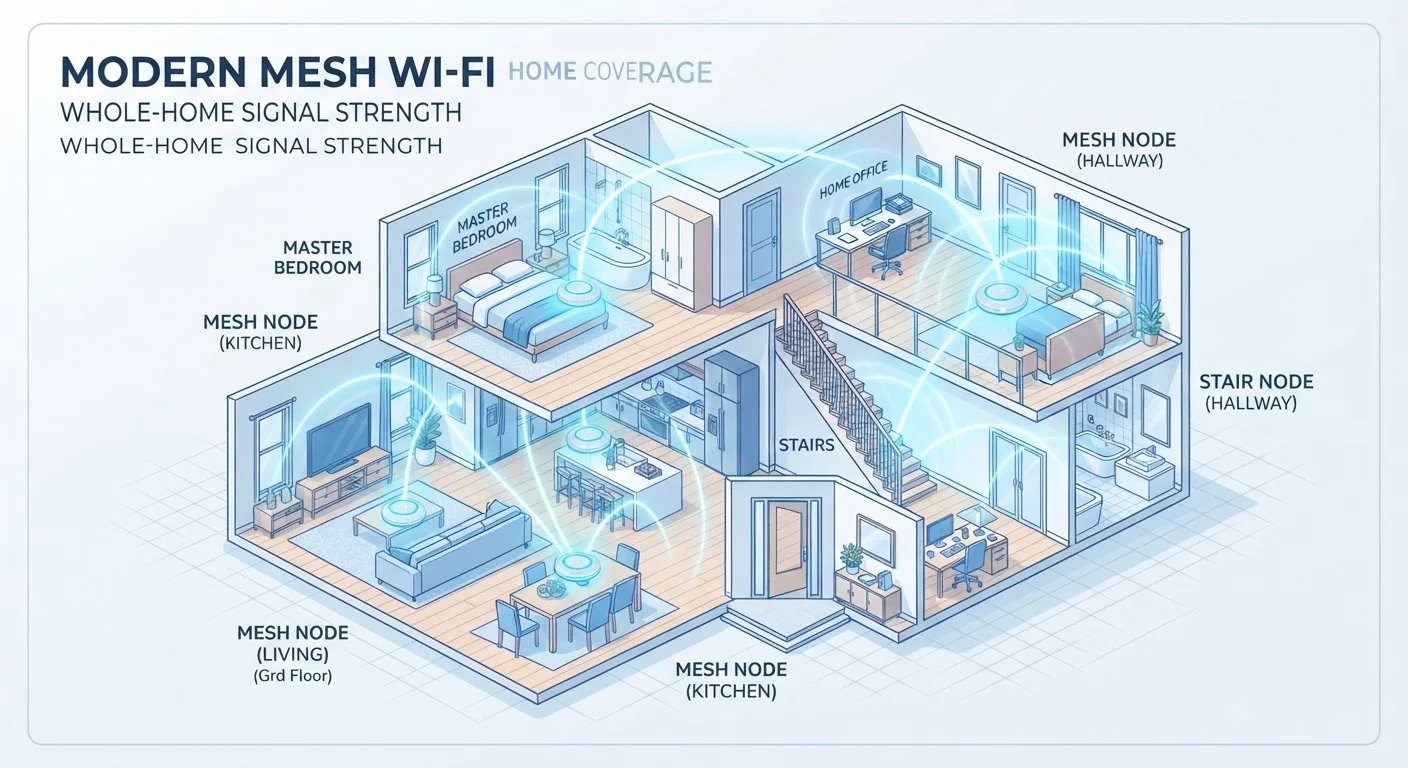
For a deeper look at how your home network underpins all of this, see our guide to home Wi-Fi mesh networks.
Common Mistakes That Break Smart Home Connectivity
The following errors account for the vast majority of smart home communication failures. Recognizing them is the first step toward a more reliable setup.
Mixing wireless protocols without a compatible hub to bridge them.
Why it happens: Shoppers focus on features and price rather than the communication standard a device uses, assuming all smart devices work together by default.
Connecting smart home devices to a 5 GHz Wi-Fi network when the device only supports 2.4 GHz.
Why it happens: Modern routers often broadcast both bands under the same network name, making it impossible to tell which band a device has joined - until it fails to connect.
Ignoring firmware updates - or applying them without checking compatibility first.
Why it happens: Updates feel optional, and the connection between a firmware change and a broken automation isn't obvious until days later.
Placing a hub, bridge, or Zigbee coordinator too close to the Wi-Fi router.
Why it happens: It seems logical to keep networking hardware together, but Zigbee operates near the same frequency range as Wi-Fi, and close proximity causes direct interference.
Building an automation that chains multiple protocols without accounting for latency differences between them.
Why it happens: Automations look the same in an app regardless of the underlying protocol, so it's easy to assume they'll all respond at the same speed.
The 2.4 GHz Congestion Problem Most People Ignore
Your router broadcasts on two main frequency bands: 2.4 GHz and 5 GHz. Most budget smart home devices - bulbs, plugs, sensors - only support 2.4 GHz. Zigbee devices also operate near the 2.4 GHz range, which means your microwave, baby monitor, neighboring Wi-Fi networks, and a dozen smart devices are all competing for the same limited radio space.
14+
Average smart devices per U.S. household
Industry research from Parks Associates has consistently found double-digit connected device counts in broadband-enabled U.S. homes, intensifying 2.4 GHz band congestion.
3
Non-overlapping 2.4 GHz Wi-Fi channels
The 2.4 GHz band offers only three non-overlapping channels (1, 6, and 11), meaning heavy device density in that range creates measurable interference for all devices sharing it.
Congestion on this band causes intermittent dropouts that are notoriously hard to diagnose because they don't follow a predictable pattern. Devices appear online in the app but fail to respond. Automations trigger randomly or not at all. The fix is often as simple as changing your router's Wi-Fi channel (channels 1, 6, and 11 don't overlap on 2.4 GHz) or moving Zigbee coordinator hardware away from the router itself.
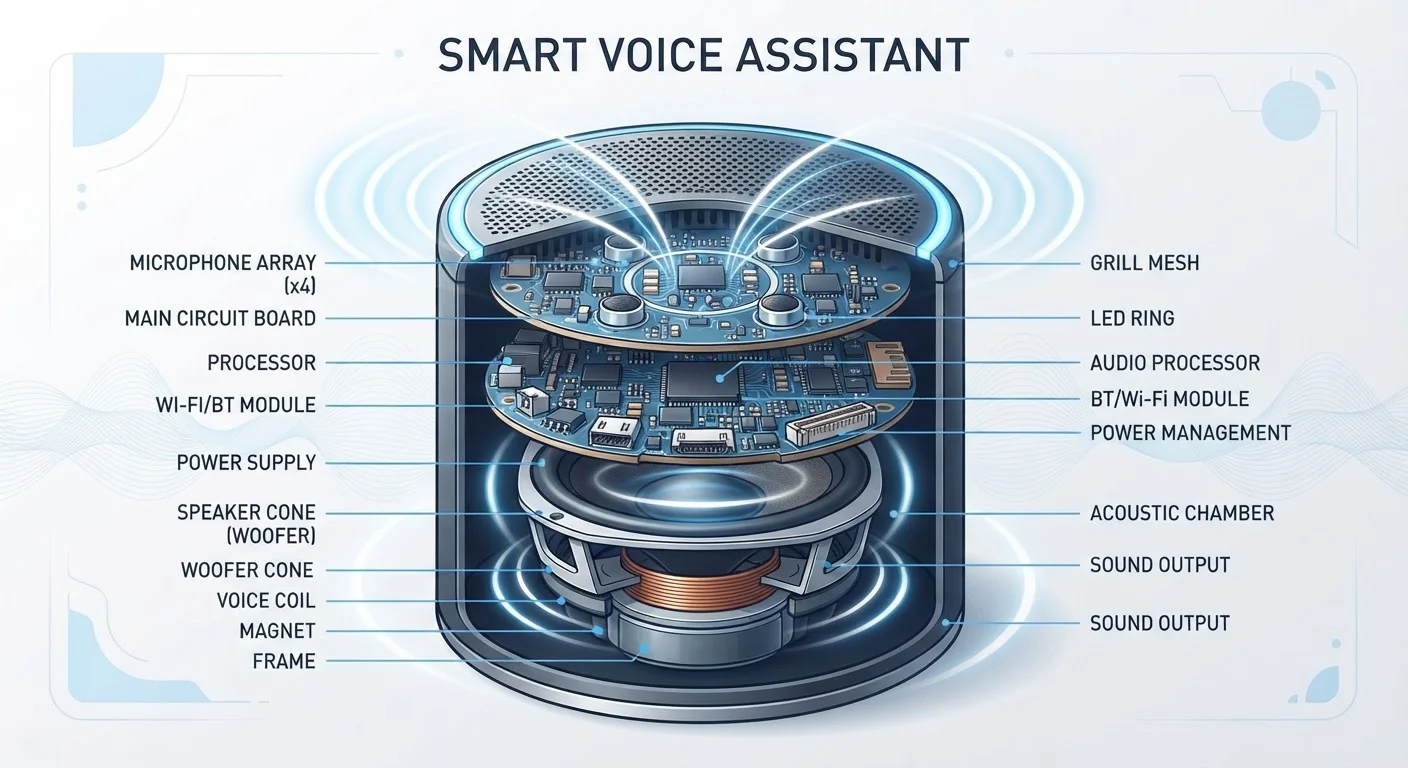
Smart speakers, which depend on both Wi-Fi and cloud processing, are especially vulnerable to congestion. Our explainer on how voice assistants actually hear you covers why network stability matters so much for voice-controlled devices.
Building a More Stable Smart Home Going Forward
The single most effective long-term strategy is reducing the number of protocols in your home. This doesn't mean replacing everything at once - it means being intentional about new purchases. The Matter standard, introduced in 2022 and backed by major platform makers, is designed to let devices from different manufacturers communicate over a common protocol. It doesn't solve every problem, but it meaningfully reduces the translator problem described above.
Beyond protocol choices, network architecture matters. A stable, well-segmented home network - ideally with smart home devices on their own Wi-Fi network segment (often called a VLAN or guest network) - reduces interference and makes troubleshooting far easier. If your current router struggles to cover your whole home, that's a foundational issue worth addressing before adding more devices. Our mesh network explainer walks through how distributed Wi-Fi systems handle coverage gaps.
Finally, make firmware updates a regular habit rather than an afterthought - but test automations after any major update, since changes to one device's firmware can quietly alter how it communicates with others.