How Each Drive Actually Stores Your Data
Understanding the difference between an SSD and an HDD starts with what's happening inside each drive when you save a file.
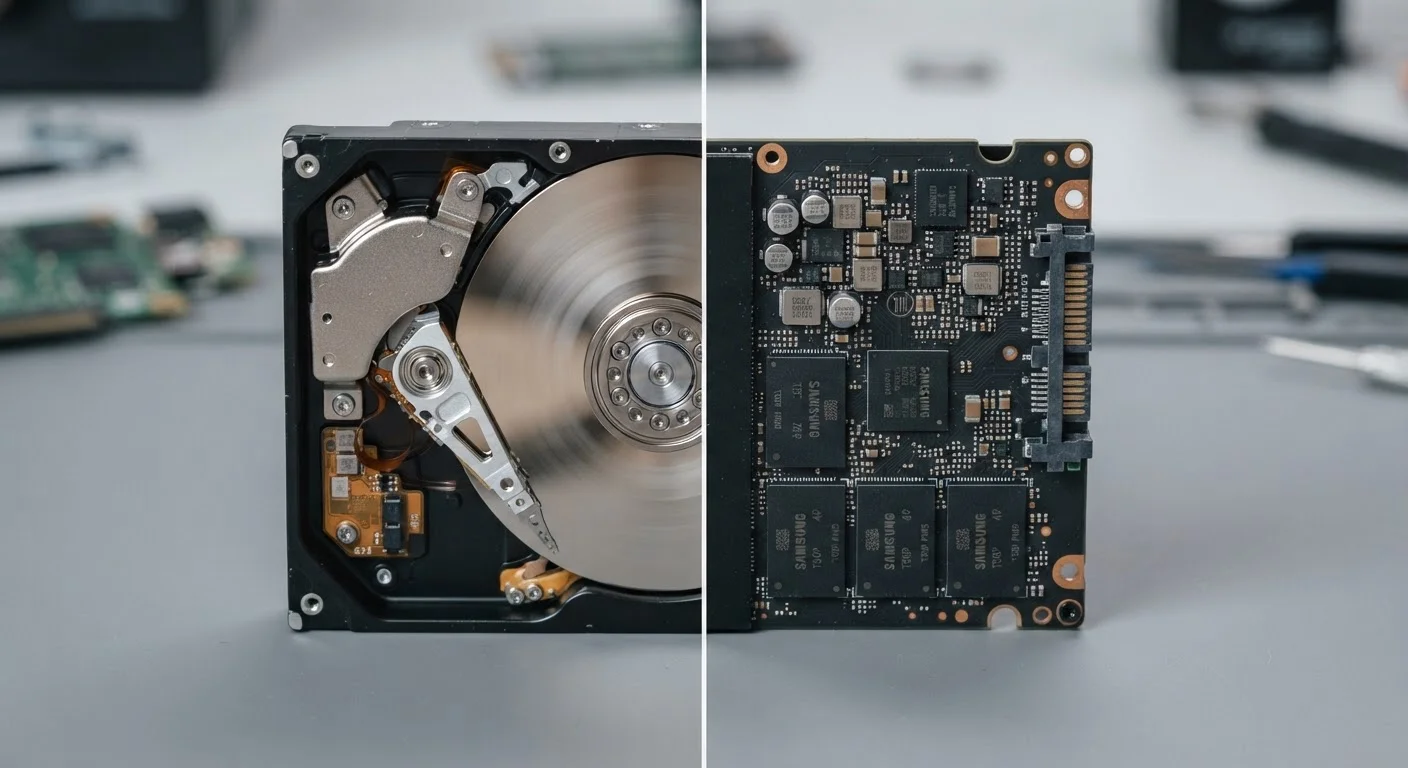
An HDD (Hard Disk Drive) works much like a high-speed record player. It contains one or more rigid magnetic platters that spin at thousands of revolutions per minute. A mechanical read/write head moves across the surface to find and record data. Because it involves physical motion, there's a small but real delay - called latency - every time the drive locates information.
An SSD (Solid-State Drive), by contrast, contains no moving parts whatsoever. It stores data on interconnected flash memory chips - similar in concept to the chip inside a USB thumb drive, but far faster and more sophisticated. When your computer requests a file, the SSD retrieves it electronically rather than mechanically, with virtually no delay.
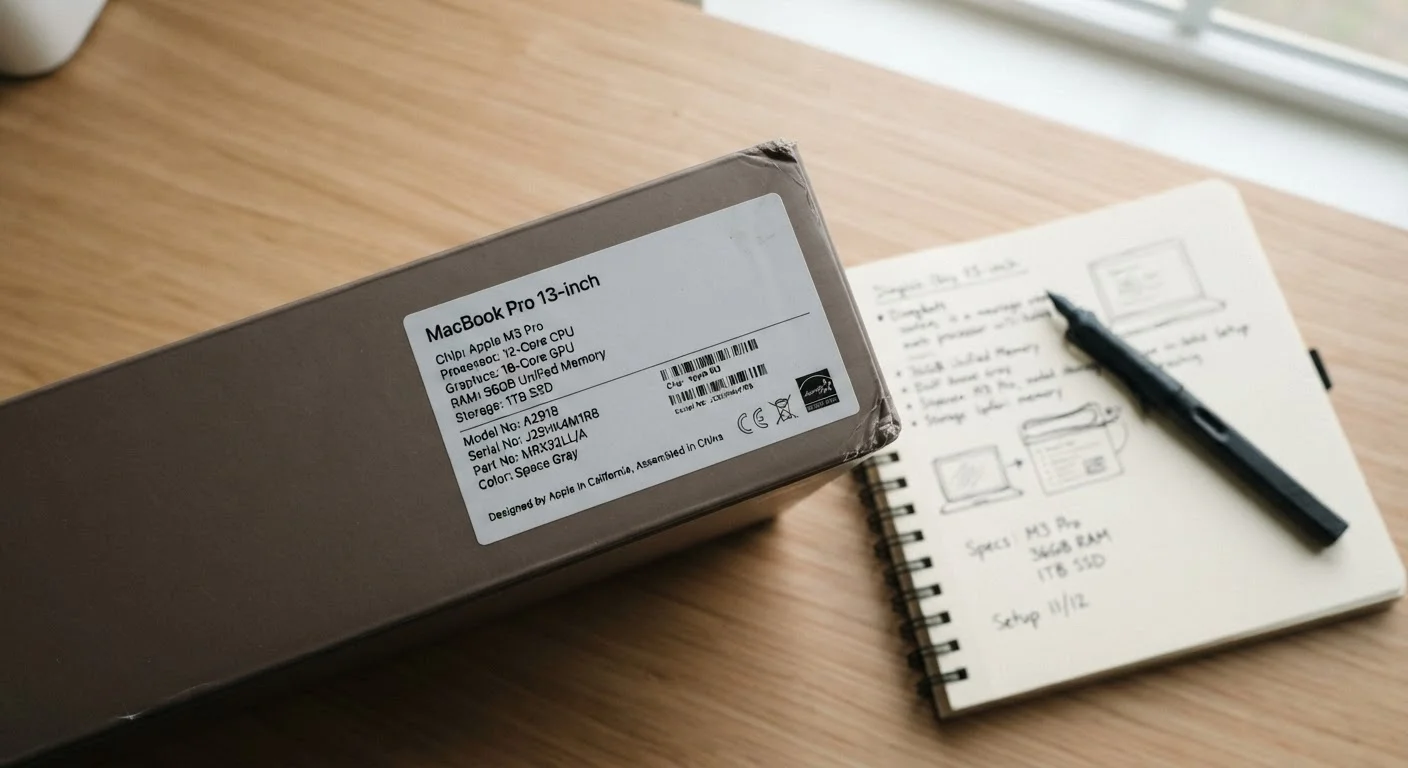
This fundamental difference in design - mechanical vs. electronic - is the root cause of almost every practical distinction between the two. For a broader look at how storage fits alongside other specs, see what those numbers on the box actually mean.
Speed, Durability, and Capacity: The Key Trade-Offs
Once you understand the mechanical vs. electronic distinction, the performance differences follow logically.
| Criterion | SSD | HDD |
|---|---|---|
| Storage technology | Flash memory chips | Spinning magnetic platters |
| Typical read speed | 500-3,500+ MB/s | 80-160 MB/s |
| Moving parts | None | Yes (platters and read arm) |
| Shock resistance | High | Low to moderate |
| Noise output | Silent | Audible during operation |
| Cost per terabyte | Higher | Lower |
| Typical capacity range | 256 GB - 4 TB (common) | 500 GB - 20 TB (common) |
| Best primary use | OS, apps, everyday files | Archiving, backups, bulk storage |
Speed: SSDs are dramatically faster. A typical HDD reads data at roughly 80-160 megabytes per second (MB/s). A mainstream SATA SSD commonly reaches 500-550 MB/s, and NVMe SSDs - a newer connection format - can exceed 3,000 MB/s. In practical terms, this means your operating system boots in seconds rather than a minute, and large files transfer far more quickly.
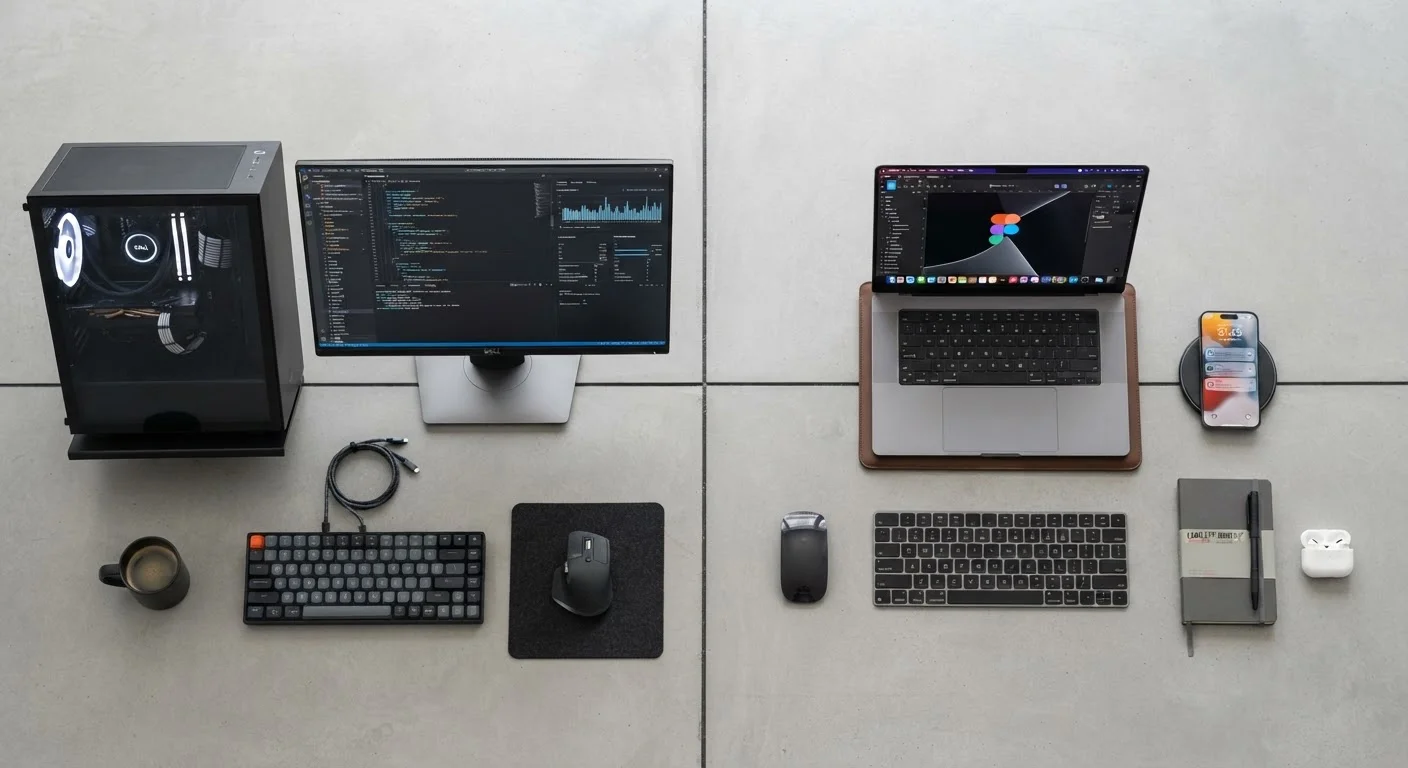
Durability: Because HDDs contain spinning platters and a moving read/write arm, a hard knock or drop can physically damage those components and cause data loss. SSDs, having no mechanical parts, are considerably more resistant to physical shock - a real advantage in laptops and portable devices. See how this plays into the broader desktop vs. laptop performance trade-offs when choosing a form factor.
Capacity and cost: HDDs have a clear edge in raw storage per dollar. A 4TB HDD is widely available at a fraction of the cost of a comparable SSD. If you need a large volume of storage for archiving video footage, raw photo libraries, or backups, this cost gap matters.
Noise and heat: Spinning platters generate audible noise and some heat. SSDs run silently and typically cooler, which can be relevant in quiet environments or compact systems.
Which One Is Right for Your Situation?
For most everyday computing - web browsing, document editing, streaming, and general productivity - an SSD will make your computer feel noticeably faster and more responsive. The performance difference is one that users can feel immediately, not just measure on a benchmark.
HDDs remain practical as secondary or backup drives in desktop setups, where speed is less critical than sheer capacity. Many users run an SSD as their primary drive (where the operating system and applications live) and pair it with a high-capacity HDD for file storage. This hybrid approach balances speed and economy.
It's also worth clarifying that drive storage is a different resource from RAM - a mix-up that's surprisingly common. RAM and storage serve different roles: RAM handles what your computer is actively working on right now, while your drive holds everything permanently. Both matter, but in different ways.
NVMe vs. SATA: A Quick Clarification
SSDs come in two main connection types: SATA and NVMe. SATA SSDs are faster than any HDD but are limited by an older interface standard. NVMe SSDs use a faster connection (typically the M.2 slot) and can be several times quicker than SATA. When reviewing specs, look for "NVMe" if speed is a priority. Not all computers support both types, so check compatibility before upgrading.
If you're evaluating a computer and see the spec listed simply as "storage," it's worth confirming whether that storage is an SSD or HDD - it will have a larger impact on the machine's perceived speed than almost any other single component.