What's Actually Happening Inside Your Laptop
Every processor generates heat as a byproduct of doing work. In a desktop tower, large fans and spacious airflow channels carry that heat away efficiently. In a thin laptop - particularly ultrabooks designed to be under 15mm thick - engineers have very little room to work with. Smaller fans, shorter heat pipes, and tighter chassis leave processors with less thermal margin.
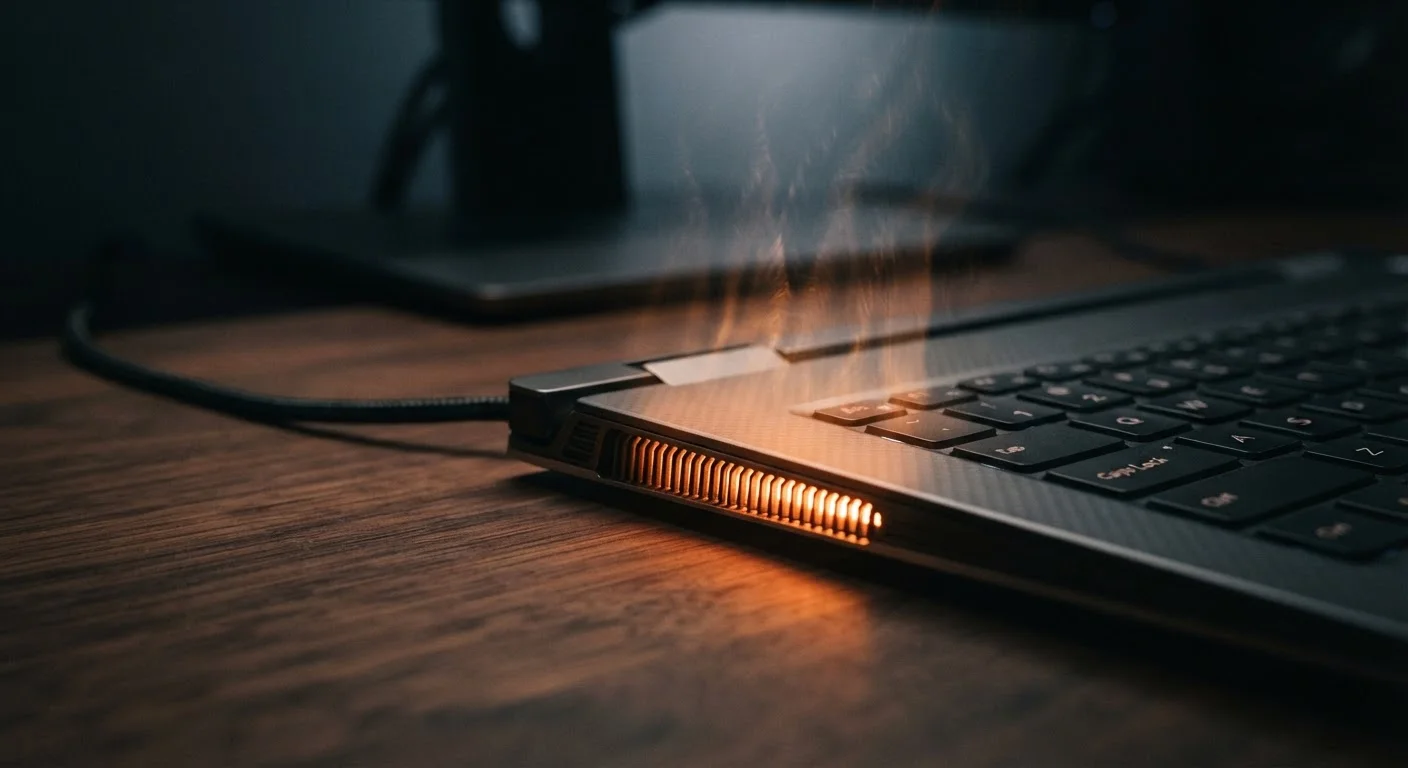
When the chip's internal temperature climbs toward its safety ceiling, the processor's onboard firmware kicks in automatically. It pulls back clock speed (the rate at which it processes instructions) and reduces voltage. This is thermal throttling - a controlled slowdown to keep temperatures from causing permanent hardware damage.
The trade-off is real and measurable. A processor running at 4.0 GHz might drop to 2.5 GHz or lower during sustained throttling. Tasks that felt snappy at first - exporting a video, running a large spreadsheet, compiling code - slow down noticeably as the laptop heats up over several minutes of use.
Why Thin Laptops Are Especially Vulnerable
The pursuit of portability creates an inherent tension with performance. Chip manufacturers now pack enormous processing power into very small dies, and that power produces heat. Thin laptop designs - praised for their aesthetics and travel-friendliness - simply cannot shed heat as quickly as their bulkier counterparts.
Check Sustained Performance, Not Just Peak Speed
When evaluating a laptop for demanding tasks, look for reviews that include sustained workload tests - not just short benchmarks. A processor that peaks at impressive speeds may throttle significantly within minutes under real use. Sustained performance scores give a far more accurate picture of everyday capability.
This trade-off shows up clearly in benchmark testing. A processor that performs at its full rated speed in a desktop or thick workstation may sustain only 60-75% of that speed in an ultrabook chassis over a prolonged workload. The chip itself is identical; the thermal environment is not.
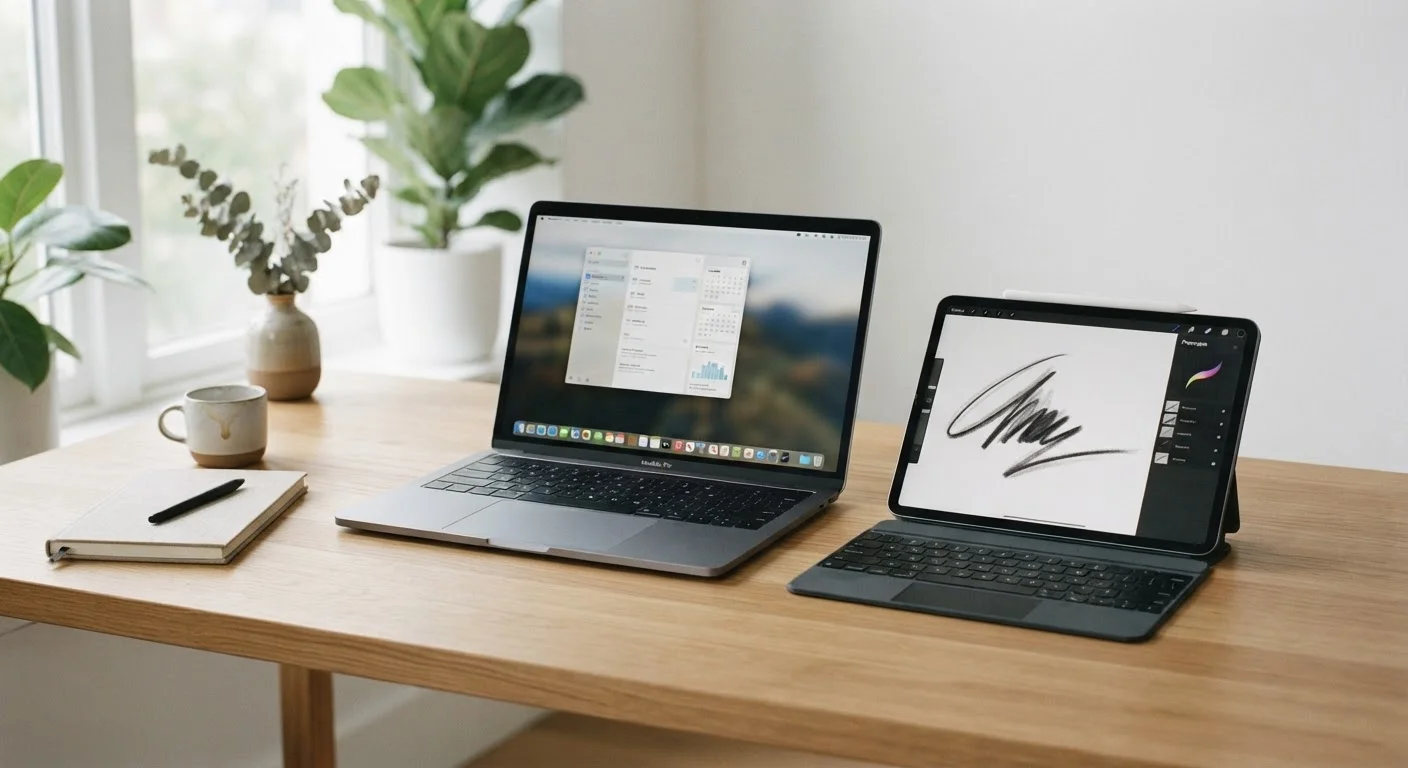
Choosing between a thin device and a more capable one involves real trade-offs beyond just size and weight. For a broader look at form-factor decisions, see our guide to tablet and laptop trade-offs, which covers how portability affects day-to-day capability.
When You're Most Likely to Notice It
Throttling is almost invisible during light tasks. Browsing the web, writing documents, or watching video rarely pushes processors hard enough to trigger it. The problem surfaces during sustained heavy workloads - the kind that keep the CPU and GPU working at high capacity for more than a few minutes at a stretch.
- Video editing and export: Encoding footage stresses the CPU for extended periods, often triggering throttling partway through a render.
- Gaming: Games load both the CPU and GPU simultaneously, producing more heat than either would alone.
- Large data processing: Running complex formulas across thousands of rows, or batch-processing images, sustains high CPU usage long enough for heat to accumulate.
- Software compilation: Developers building large codebases often see clock speeds drop as compile times stretch on.
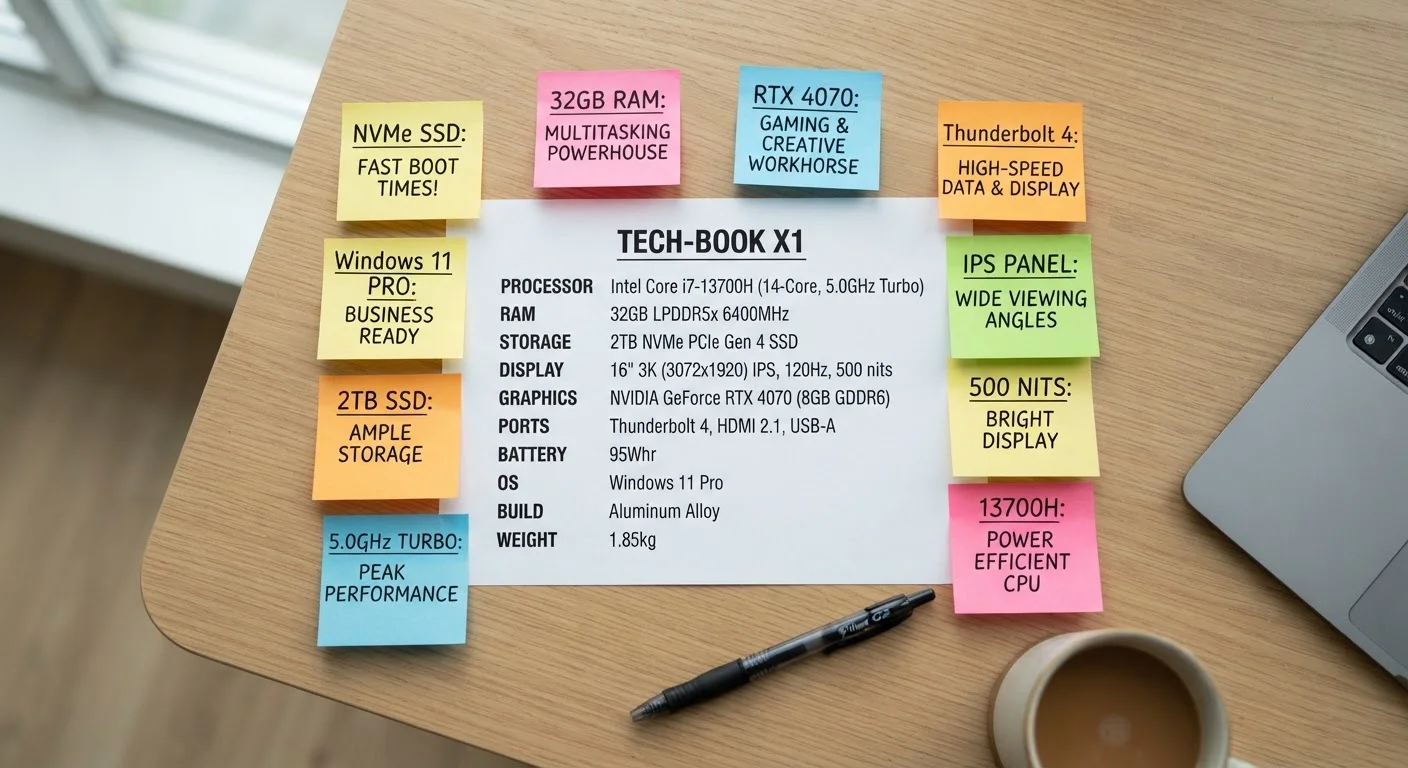
A laptop might feel perfectly capable during a store demo or a 10-minute task - and still throttle badly during a 30-minute workflow. That gap between burst performance and sustained performance is one of the most important - and least discussed - factors in everyday usability. Our plain-English laptop specs glossary explains TDP and related terms that reveal how a chip is designed to handle sustained loads.
What You Can Do About It
You cannot eliminate thermal throttling in a thin laptop through software alone, but you can reduce how often and how severely it occurs.
- Use on hard, flat surfaces. Soft surfaces like beds and couches block bottom vents. A hard desk keeps intake airflow open.
- Keep vents clear. Dust buildup in fan grilles reduces airflow significantly. Compressed air used carefully on vents can help on older machines.
- Check power and performance settings. Both Windows and macOS offer performance modes. Running in a lower power mode during light tasks reduces baseline heat generation.
- Monitor temperatures. Tools like HWiNFO on Windows let you watch CPU temperatures and clock speeds in real time, so you can see exactly when and how severely your machine throttles.
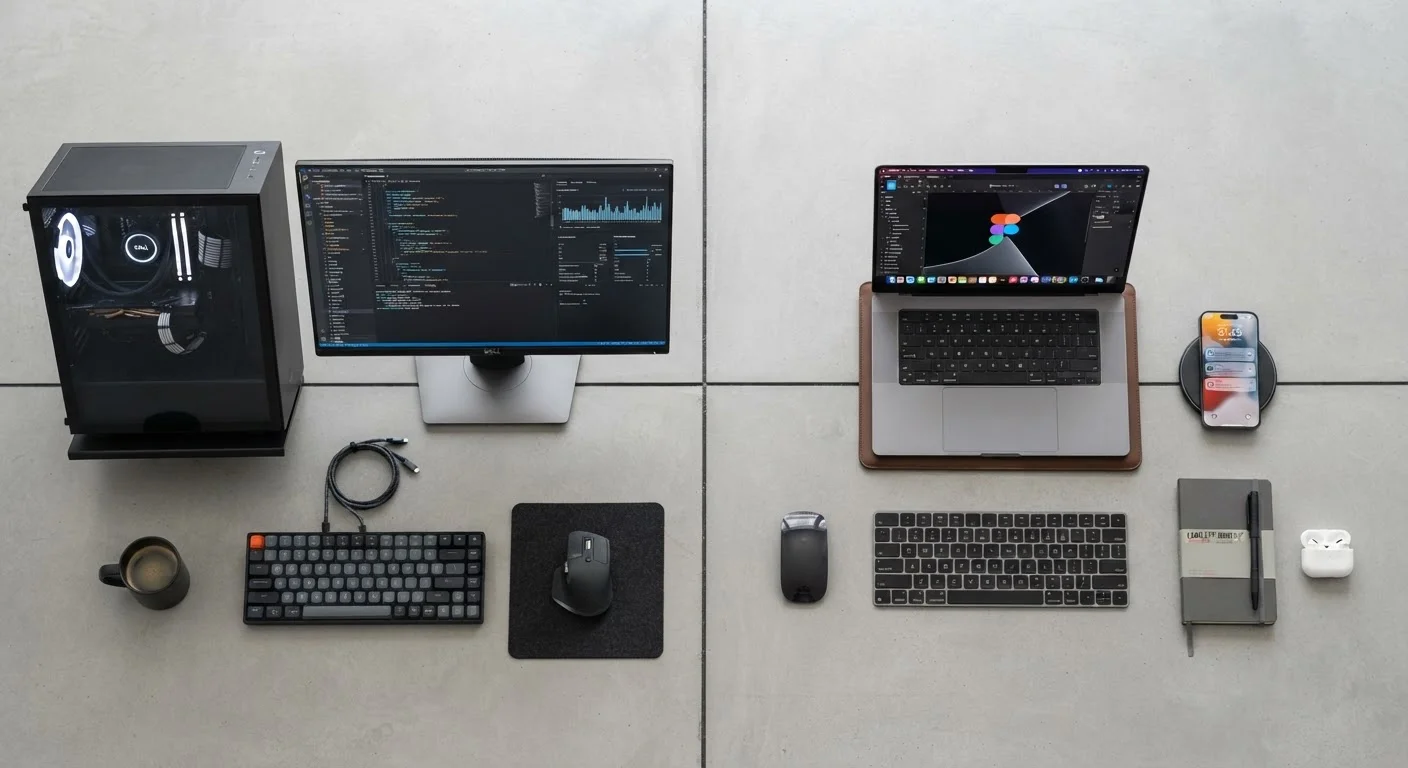
For context on how laptops and desktops handle these thermal limits differently, the desktop vs. laptop performance trade-offs article explains why the same chip behaves very differently depending on where it's installed.
Understanding thermal throttling won't make your laptop run cooler - but it will help you set realistic expectations, choose the right device for your needs, and recognize when a slowdown is the hardware protecting itself rather than a sign something has gone wrong.