Why Learning PC Specs Actually Matters
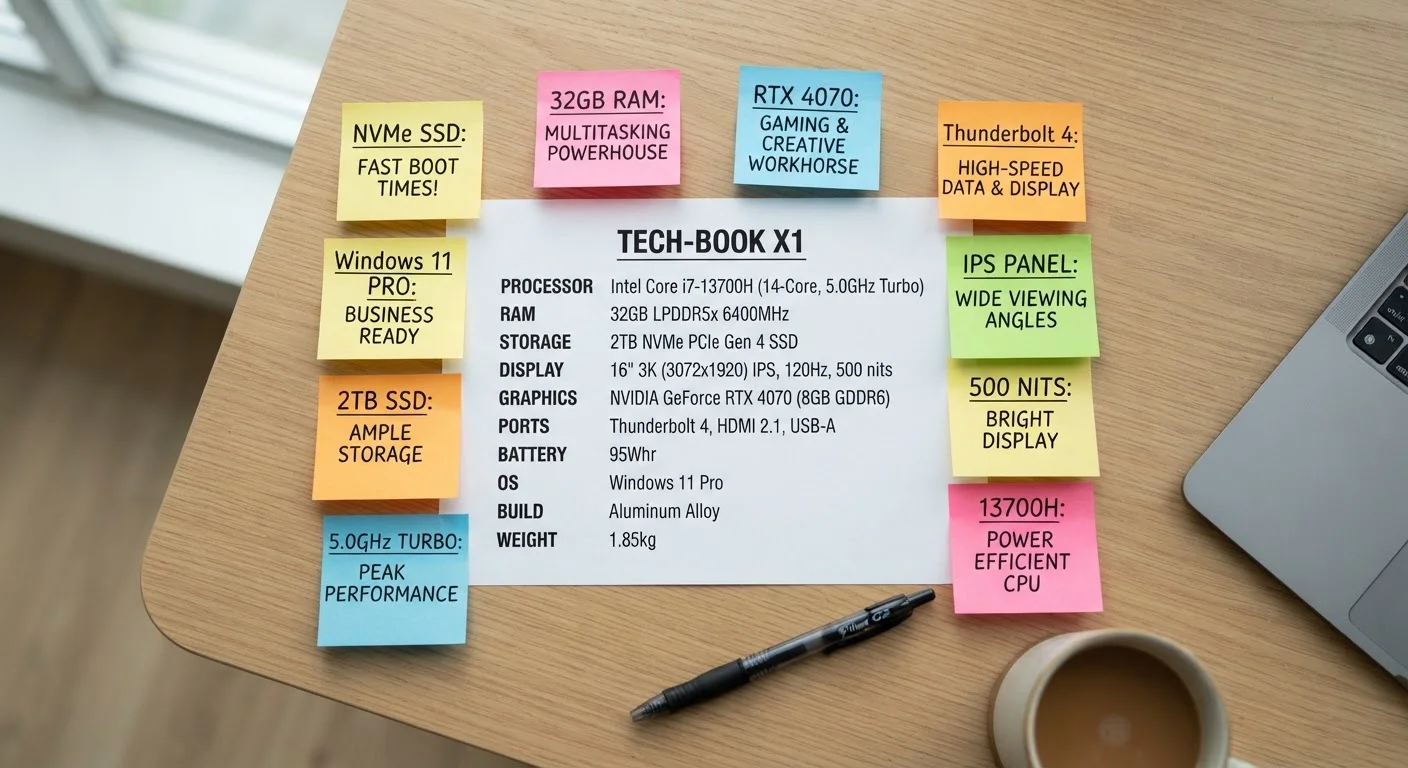
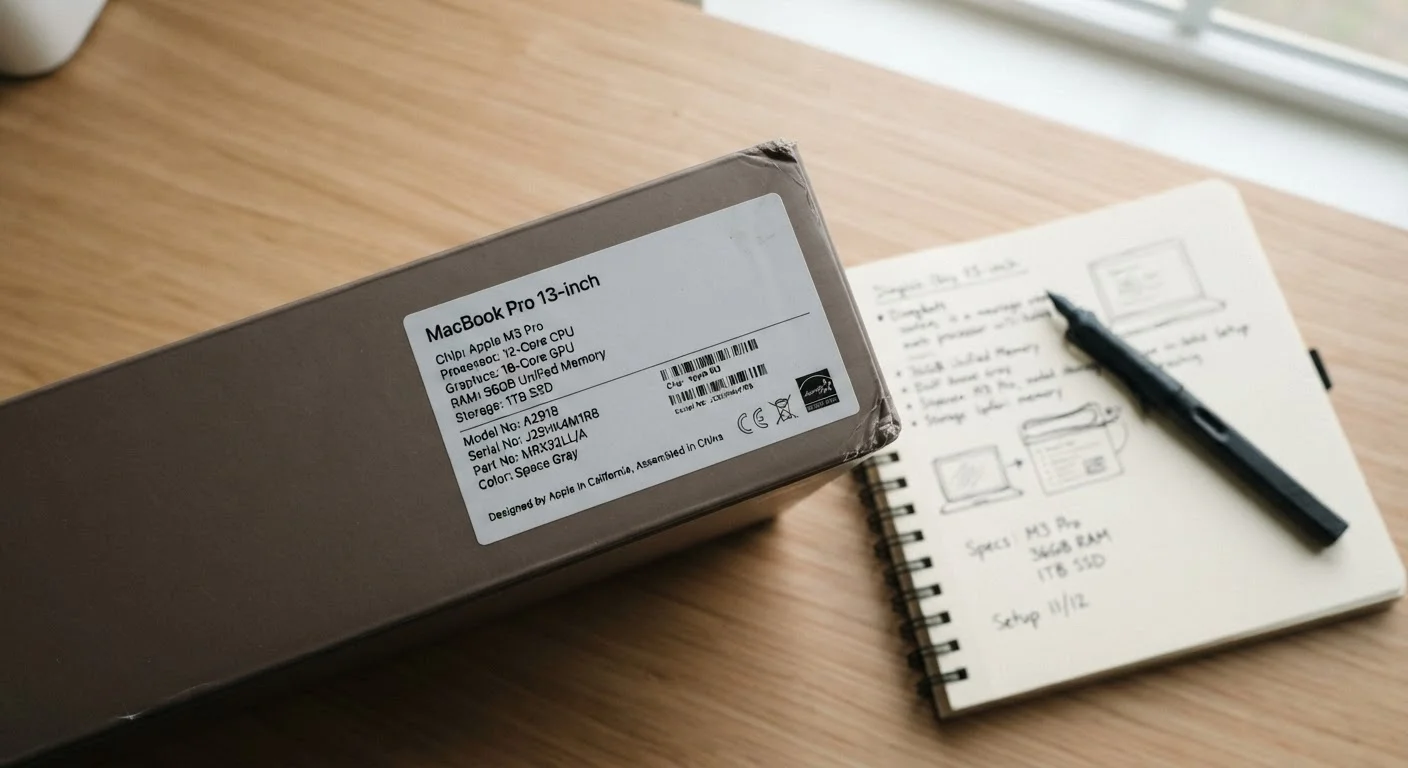
A spec sheet for a computer can look like a foreign language: GHz, DDR5, NVMe, TDP. Most people either ignore those details entirely or trust that a higher number is always better. Neither approach serves you well.
Understanding what each component actually does - even at a basic level - changes how you evaluate any computer, whether you're looking at something new, used, or handed down by a family member. It also helps you diagnose performance problems: if your computer feels slow, knowing whether the culprit is the CPU, RAM, or storage points you toward the right solution.
This guide walks through every major hardware component in plain language, starting with what it does and ending with why it matters for real-world use. For a deeper look at the terminology you'll encounter on product pages, the plain-English laptop specs glossary is a useful companion reference.
The CPU: Your Computer's Decision-Maker
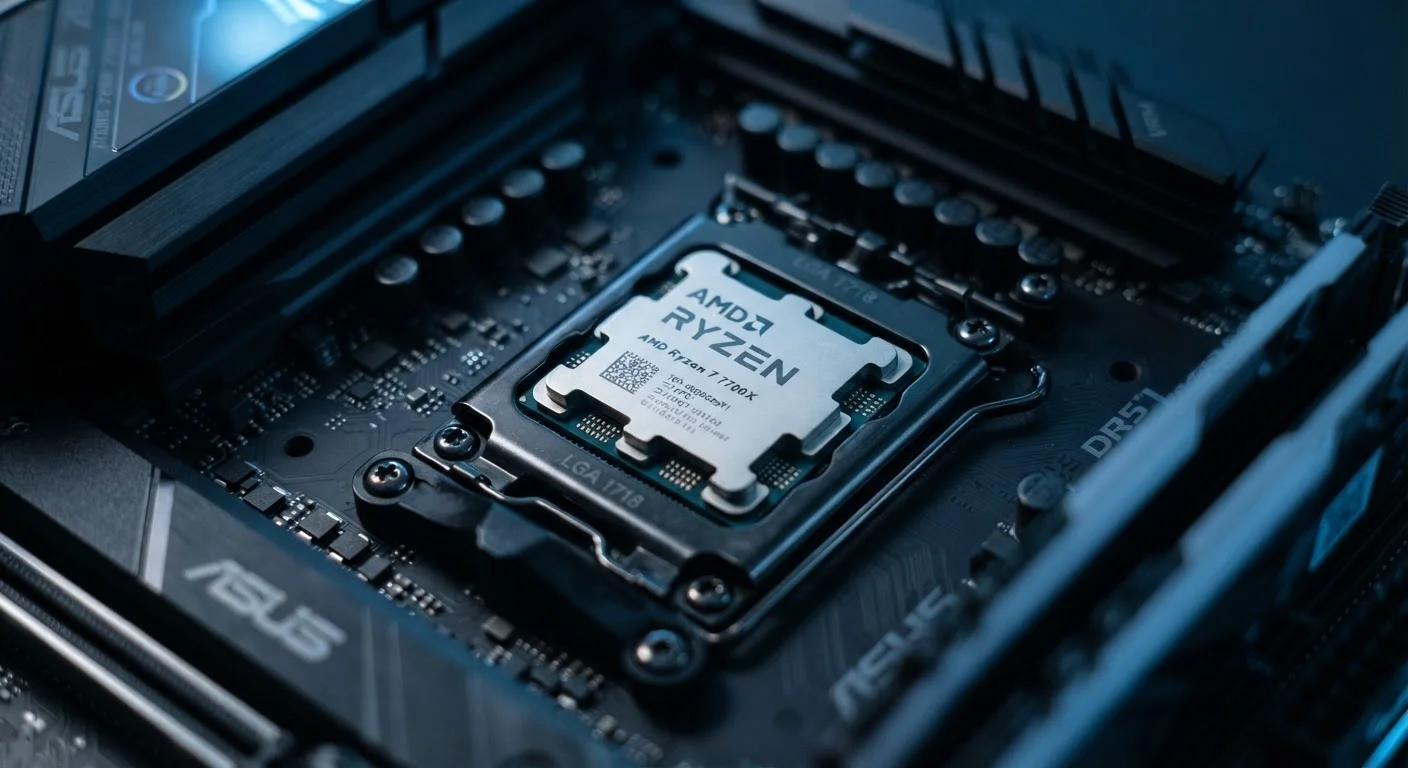
The CPU (Central Processing Unit) is often called the brain of a computer, but a more precise analogy is a calculator - an extremely fast one that handles billions of instructions per second. Every time you open an app, load a webpage, or save a file, the CPU is doing the underlying math.
Two numbers appear most often in CPU descriptions: clock speed (measured in GHz, or gigahertz) and core count. Clock speed reflects how many instruction cycles the processor completes per second. Core count reflects how many independent processing units are packed into the chip. A processor with more cores can handle multiple tasks simultaneously - but more cores don't automatically mean faster performance on any single task.
CPU (Central Processing Unit)
The main processor chip that carries out the instructions of your programs. Think of it as the computer's core calculator and decision-maker.
Clock Speed (GHz)
A measure of how many processing cycles a CPU completes per second. Higher GHz generally means faster single-task performance, though it's not the only factor.
Core Count
The number of independent processing units inside a CPU. More cores allow the processor to handle multiple tasks at the same time.
RAM (Random Access Memory)
Short-term working memory that holds data for programs currently in use. It's cleared when the computer restarts or an app is closed.
SSD (Solid-State Drive)
A storage device that uses flash memory chips instead of spinning disks, resulting in much faster file access and boot times compared to a traditional hard drive.
Bottleneck
When one slower component limits the performance of faster components around it, preventing the system from reaching its full potential.
GPU (Graphics Processing Unit)
A processor specialized for rendering images and video. Also used for other parallel computing tasks like video encoding and machine learning.
Thermal Throttling
A self-protection mechanism where a chip automatically reduces its speed to lower heat output and avoid damage from overheating.
For most everyday computing, a modern CPU with four to eight cores and a clock speed above 2.5 GHz handles web browsing, document editing, and video streaming without strain. Tasks like video editing or running multiple virtual machines benefit noticeably from higher core counts. For a deeper look at common misunderstandings, see things people get wrong when reading CPU specs.
RAM and Storage: Two Very Different Kinds of Memory
These two are consistently confused, even by people who've owned computers for years. Here's the clearest way to separate them:
- RAM (Random Access Memory) is your computer's short-term, working memory. It holds the data your active programs are currently using. When you close a program, that data is cleared from RAM. More RAM lets you run more programs simultaneously without the system slowing to a crawl.
- Storage (an HDD or SSD) is long-term memory - where your files, photos, applications, and operating system live permanently, even when the computer is off.
A common analogy: RAM is your desk surface (the bigger it is, the more you can spread out at once), while storage is your filing cabinet (where everything goes when you're done). The filing cabinet's speed - how fast it hands you a folder - is where SSDs dramatically outperform traditional hard drives. An SSD can load an operating system in under 15 seconds; a mechanical hard drive may take a minute or more.
For a detailed breakdown of what these numbers mean on a product label, see what RAM, storage, and processing speed numbers actually mean.
The GPU: Graphics and Beyond
The GPU (Graphics Processing Unit) was originally designed to render images on screen - handling the calculations that turn raw data into the visuals you see. Today it plays a broader role, also accelerating tasks like video encoding, machine learning workloads, and scientific simulations.
GPUs come in two forms: integrated (built into the same chip as the CPU, sharing system RAM) and dedicated (a separate card with its own faster memory, called VRAM). Integrated graphics handle most everyday tasks well - streaming video, displaying documents, basic photo viewing. Dedicated GPUs become important when visual workloads are heavy: gaming, 4K video editing, 3D modeling, or running multiple high-resolution monitors.
Check VRAM When Evaluating a Dedicated GPU
VRAM (Video RAM) is the dedicated memory on a graphics card used to store image data while rendering. For gaming or video editing at higher resolutions, more VRAM directly affects how smoothly your system handles complex visuals. A dedicated GPU with 4GB of VRAM will handle modern tasks more comfortably than one with 2GB, even if other specs appear similar.
If you're comparing a desktop to a laptop, note that desktop GPUs generally outperform their laptop counterparts due to fewer thermal and power constraints. That distinction matters more than the chip name alone. More on this in desktop vs. laptop performance trade-offs.
The Motherboard, Power Supply, and the Rest
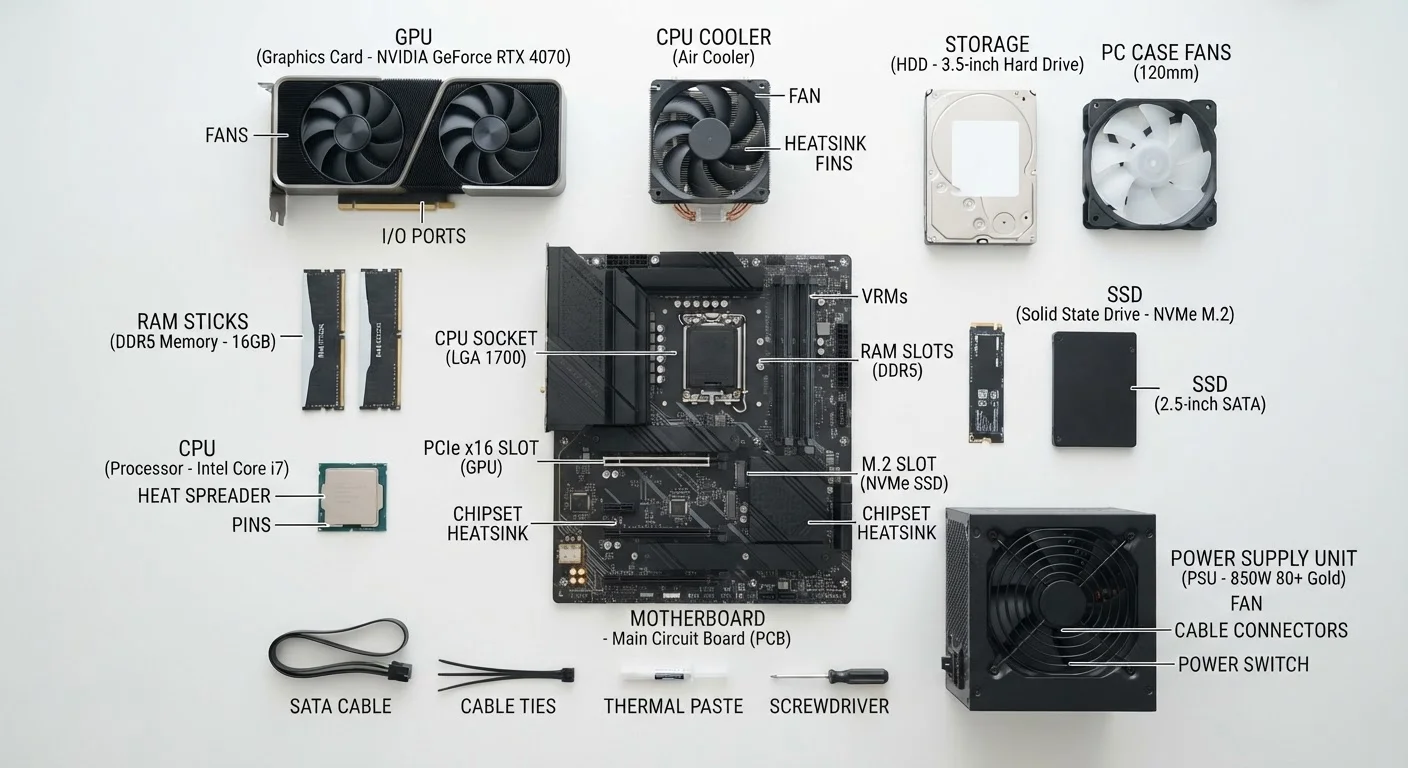
Every component described so far needs somewhere to live and something to power it. That's where the remaining hardware comes in.
- Motherboard
- The main circuit board that physically connects the CPU, RAM, GPU, and storage. It also determines compatibility - not every CPU fits every motherboard, and the board dictates which RAM generations and speeds the system supports.
- Power Supply Unit (PSU)
- Converts AC power from your wall outlet into the lower-voltage DC power that computer components require. Wattage matters: an underpowered PSU can cause crashes or fail to support high-performance components.
- Cooling
- CPUs and GPUs generate substantial heat under load. Cooling solutions range from stock air coolers included with processors, to aftermarket fans, to liquid cooling loops. Adequate cooling prevents thermal throttling - a process where the chip automatically slows itself down to avoid overheating.
- Ports and Connectivity
- USB, HDMI, Ethernet, and audio jacks are all managed through the motherboard or dedicated expansion cards. The types and speeds of available ports affect what external devices you can connect and how fast data transfers between them.
Putting It All Together: How Components Work as a System
The most important concept in computer hardware is this: components work as a team, and the slowest member limits the whole group. This is called a bottleneck. A powerful CPU paired with too little RAM will stall waiting for memory. A fast SSD paired with a slow CPU still results in sluggish app launches. No single spec guarantees a smooth experience.
This also means that reading specs in isolation can mislead you. A laptop advertised with a high-end processor may pair it with minimal RAM - a combination that underperforms a more balanced, modestly-specced machine. When evaluating any computer, look at the complete picture.
If you're curious how PCs compare to the hardware inside your phone, the plain-English smartphone hardware tour covers the same concepts applied to mobile chips. And if you're considering a secondhand machine, how to check a used or refurbished computer walks through what to verify before committing.
Hardware knowledge is cumulative - each component you understand makes the next one easier to place. Start with the CPU and RAM, and the rest of the map fills in naturally.