Why RAM Capacity Is the First Spec to Evaluate
When a computer slows to a crawl with several apps open, RAM is almost always the first place to investigate. Every program you run - your browser, your email client, your music app - claims a chunk of RAM. When that pool fills up, the system compensates by borrowing space from your much slower storage drive, and performance drops noticeably.
The right amount of RAM isn't universal. It's determined almost entirely by what you do on the machine, not by a single industry standard. Understanding your own workflow is the most useful first step. For a broader look at what all those spec-sheet numbers mean together, our guide on RAM, storage, and processing speed lays out the full picture.
Mapping RAM to Real-World Use Cases
Rather than thinking in abstract gigabytes, it helps to map common amounts to the tasks they realistically support:
- 8GB: Suitable for Chromebooks, lightweight web browsing, document editing, and media playback - provided you don't push beyond a handful of tabs. Background processes in Windows or macOS can consume 3-4GB before you open a single app, leaving limited headroom.
- 16GB: The practical standard for most home and office users. Handles everyday multitasking - multiple browser tabs, video calls, productivity apps, light photo editing - without forcing the system to lean on virtual memory.
- 32GB: Appropriate for video editors, audio producers, software developers running local servers or virtual machines, and power users who keep dozens of applications open simultaneously. This tier provides meaningful breathing room for memory-intensive workflows.
- 64GB and above: Typically reserved for professional workstations handling 4K/8K video editing, 3D rendering, machine learning tasks, or running multiple virtual operating systems at once.
16GB
Recommended RAM for most mainstream laptops
Industry analysts and hardware reviewers broadly cite 16GB as the current baseline recommendation for general-purpose computers as of the mid-2020s.
3-5GB
RAM used by Windows 11 at idle
Microsoft's own system requirements and independent benchmarks consistently show Windows 11 consuming this range before any user applications are opened.
400MB+
RAM a single browser tab can consume
Memory profiling tests on modern browsers like Chrome and Edge regularly show individual tabs using between 150MB and 400MB depending on page complexity.
It's also worth noting that tablets and phones use RAM differently from traditional computers. If you're weighing a tablet against a laptop, our breakdown of tablet vs. laptop trade-offs addresses how memory architecture factors into that comparison.
Hidden RAM Consumers You May Not Have Considered
Several factors eat into available RAM before you've opened your main application:
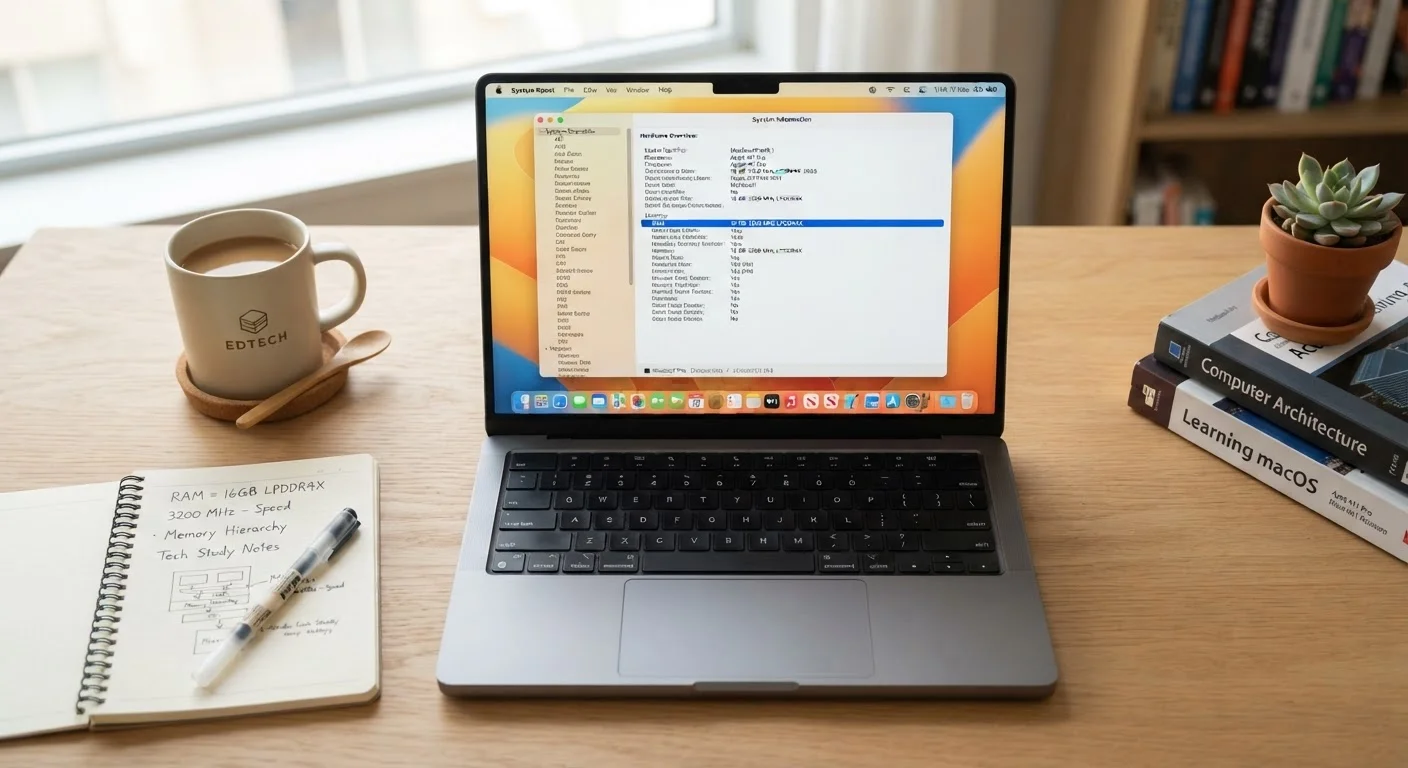
- The operating system itself: Windows 11 typically uses 4-5GB at idle. macOS Sonoma uses a similar amount. That overhead is non-negotiable.
- Browser tabs: Modern browsers are RAM-hungry by design. A single Chrome or Edge tab can consume 150-400MB depending on the page; ten tabs can easily use 2-3GB.
- Background services: Antivirus software, cloud sync tools, and system utilities all run quietly in the background, each taking a small but cumulative share.
- Graphics: On computers with integrated graphics (where the GPU shares system memory rather than having its own), the GPU claims a fixed portion of RAM - often 1-2GB - reducing what's available for applications. Our explainer on integrated vs. dedicated graphics explains how this trade-off works in practice.
Desktop vs. Laptop RAM Considerations
The form factor of your computer also shapes how RAM limitations play out in practice. Desktop computers generally make RAM upgrades straightforward and affordable. Laptops - particularly thin and light models - increasingly use soldered RAM that cannot be upgraded after purchase, making it especially important to buy the right amount upfront.
Desktops also tend to support higher RAM capacities and faster memory types at lower cost per gigabyte, which is one meaningful reason some power users prefer them for intensive workflows. Our comparison of desktop vs. laptop performance trade-offs covers this and other architectural differences in detail.
Check Before You Buy: Is RAM Upgradeable?
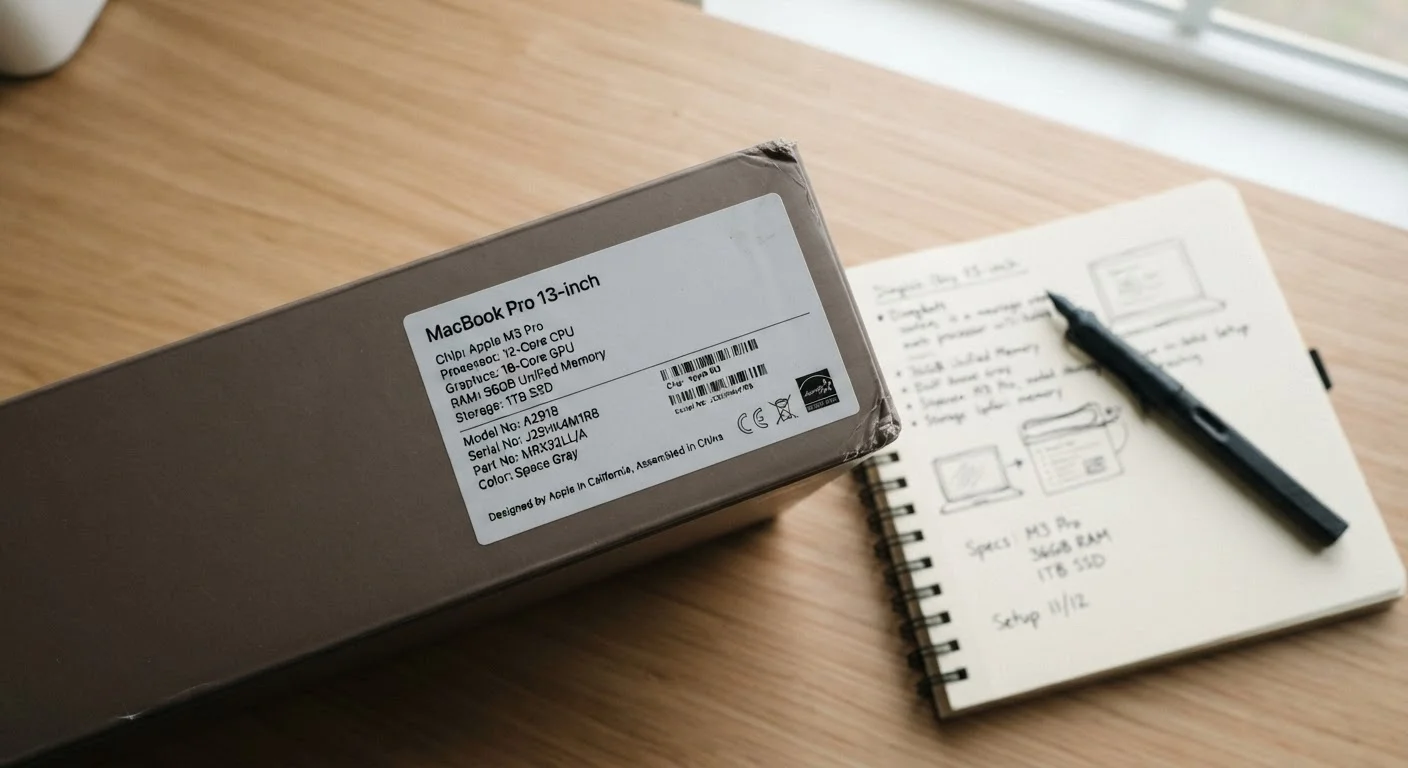
Before purchasing any laptop, search the specific model to confirm whether its RAM is soldered to the motherboard or installed in upgradeable slots. Many thin ultrabooks and MacBooks with Apple silicon use soldered memory, meaning the amount you buy is the amount you keep. When upgradeability is off the table, it's worth spending a little more upfront to avoid being underserved later.
When in doubt, prioritize buying the amount of RAM your workflow genuinely requires today. Paying a significant premium for capacity you won't use in foreseeable daily tasks yields no performance benefit.